Artlook Online can fully power your website. You can decide what works appear on your site and how they are displayed. You can make a variety of different web pages including home pages, news pages, exhibition pages, galleries of work, or pages about anything you want.
All subscriptions include a beautifully designed dynamic website – you can choose from 108 permutations.
This applies also to the free trial, although the website will not continue to be available if you do not convert to a paid subscription at the end of the period.
To start you should configure your website – see article on configuring your web site.
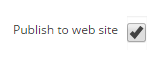
Then for the works you wish to appear on the website, ensure that the checkbox “Publish to web site” is checked:
At the same time you can decide if you want to suppress the price or if you want to offer the item for sale using Paypal – these checkboxes are just alongside.

Make sure that you save your changes.
Next, you need to create some groupings – Artlook web sites are built from your groupings. The groupings each need to be of the required type:
- For home page content, the grouping needs to be of type “Web_home”. Your home page can comprise up to 3 groupings of this type – they will be sequenced according to the grouping Sort Priority:

- For content to appear under the menu item Exhibitions (or its equivalent) you need to choose a type of “Web_exhibition”.
- For content to appear as a Gallery of work and appear under the page of Galleries (or its equivalent), use the type “Web_gallery”.
- If you want the Grouping to be a page in its own right with its own menu item, choose type “Web_page”.
Make sure that all your groupings have “Publish to website” checked:
Web site pages will display:
- The title of your grouping (which in the case of a separate page will also be the menu item)
- The Grouping image (and a carousel of additional images if you have added those on the Grouping Images tab)
- The description of your grouping
- The images and titles of any items you have in the Grouping. These will be link clickable to open a detail page with full information about the item and a full size image.
- If your page has a Google Map Reference Embed Code in the Location Information field, a Google map will also be displayed. This is particular useful for pages about exhibitions at a particular location or for an About page which could show where you are based.