Yes. All subscriptions include a web site. Please note that if you do not convert the free trial to a paid subscription then the web site will cease to function at the end of the trial period.
How can I print a catalogue of certain works only?
There are a couple of ways to do this.
- Filter your view to include only the items you wish to include in the catalogue (this could be using tags, categories, etc). From the “Print” menu choose “Catalogue”.
- Build a grouping which includes only the items you wish to include in the catalogue. Load the grouping and from the “Print” menu choose “Catalogue”.
Can I add several images for the same item?
Yes. Load the item record and go to the images tab. There you can load additional images. Once loaded and saved, you can also drag the images around to change their sequence. They will display as a carousel on an Artlook website and you can also show slides of the images on any connected device.
Can I load up several items in one go?
If you have the Studio Professional version, you can use the “Load” function button on the toolbar. This allows you to choose several images and each will be loaded as a new record which you can then edit. This is a time-saving feature. As a general rule, to avoid server or network errors we recommend choosing no more than 10 images at a time.
How can I see more than 12 records at a time?
You cannot change the number of records per screen. However, while thumbnail view shows you 12 at a time, you can switch to table view which will show you 50 at a time.
You can toggle between the two view types using these buttons on the toolbar:

What kind of documents can I store?
You can store documents related to an item (artwork) or to a grouping. The documents should generally be of type PDF so that Artlook can load them for you, but in fact you can store any type of document. You should not load documents of more than 3MB in size.
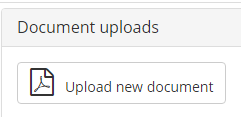
To load a document for an artwork, open the item, go to the Uploads tab, and select the button “Upload new document”.
To load a document for a grouping, open the grouping, go to the Documents tab and select the button “Upload new document”.
PLEASE NOTE THIS FEATURE IS PART OF THE STUDIO PROFESSIONAL VERSION.
Can I change the dropdown lists and options?
Yes – see here.
Do I need to back up my data?
Artlook automatically backs up your data every night including your uploaded images. Backups are kept for 4 days.
However, the intention of these backups is to prevent against server or internet failure and not to mitigate for data entry errors. As a belt and braces you can if you wish choose on a regular basis to Export your data (menu item on the System Menu) and keep a local copy. This will download the data in spreadsheet format (images are not included as it is assumed you will maintain the original that you uploaded).
Artlook is not a secure image repository. However we do offer such a service as an option, whereby you may upload very high quality large images and they will be kept securely and accessible for you. Please contact info@artlooksoftware.com for more details of this service.
Can I show pence/cents in my prices?
You can turn on or off showing the decimal element of your prices. Go to Settings | General and change the setting (near the bottom of the page) “Inventory – show PRICES with decimals” to Yes if you wish to show pence or cents in your prices.
Can I change how the customer name is displayed?
You can choose whether the system refers to a customer (contact) by Full Name or by File As. In settings, on the first tab (General), about half way down choose the preferred Contacts Display Field:

If you choose File As, whatever contents you put in that field will be used to refer to customers. The system automatically puts Surname, Firstname but you can override this with whatever you want, including an organisation name if you wish.
By default, the display field is Full Name (Firstname Surname).
Can I cancel my subscription?
Even though you are signed up (monthly or annually) via the Stripe credit card payment system, you may cancel your account at any time.
From the System Menu (click your name at the top right of the screen), choose “Cancel subscription”.
The cancellation will take effect from your next scheduled periodic payment date.
Can I get an invoice for my subscription payments?
You can download an invoice from within Artlook itself. From the System Menu (click your name at the top right of the screen) choose “Subscription invoice” and a PDF will be downloaded to your computer.
How do I mark an item as sold
From your Inventory left click to open the record you want to mark as sold.
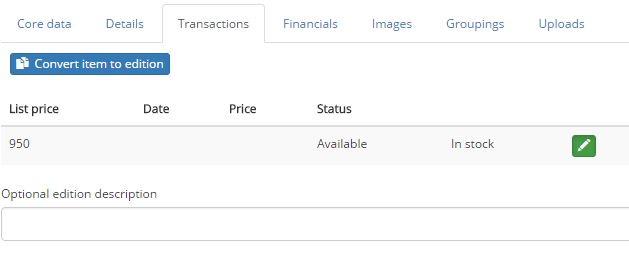
Click on the Transactions tab and the screen will look like this. Now click on the green Edit button.
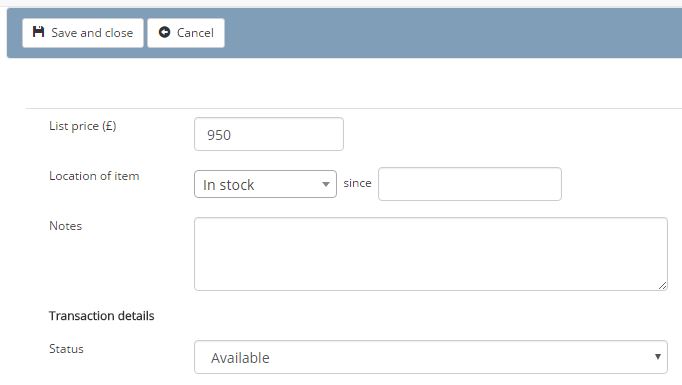
To mark this item as Sold click on the down arrow in the Status box and choose Sold. As soon as you do this you will be prompted to choose the name of the customer you are selling to. Pick their name from the list or click New Contact to add a new record.
- If you sold the item for less than the list price change the value in the Actual Price field.
- If you are processing a sale you made at an earlier date click in the Transaction Date field and pick a date from the calendar.
- If you are going to be producing an Invoice, you can add additional text to print by adding it to the Optional text for transaction document field.
- By default the location of this item will be set to the name of the purchaser but if you want to show the location as something else (maybe continue to show In Stock until you have been paid) just un-tick the Amend location on transaction completion box
Once you are finished remember to click on the Save and Close button at the top left of the screen (or Cancel if you want to start again). This will take you back to the main record for the item. Click Save and Close again to return to the Inventory list.
How do I produce an invoice
As soon as an item has been marked as Sold an invoice is created for the sale. You can print this invoice at the same time as you record the sale or at any time afterwards.
Open the record and click on the Transactions tab. Once an item has been marked as Sold you will see that there is an additional button allowing you to create the invoice : 

Click thisto create the invoice and a new browser tab will opendisplaying the invoice and the print/download options:
Click the Close button to return to the record.
How do I cancel a sale
Once an item has been marked as Sold you can cancel the transaction by simply marking the item as Available again.
Open the record and click on the Transactions tab. Click on the green Edit button. 
Now change the Status from Sold to Available and click the Save and Close button at the top left of the screen.
If you now click on the Financials tab you will see the history of the transactions – the sale and then the reversal, and this same information is displayed within the Contact record for your customer.
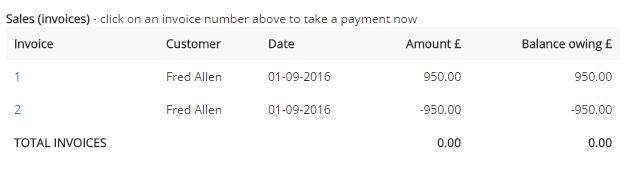
How do I record a payment
Once you mark an item as Sold the receipt for payment against the invoice is set to 0. You can see this by clicking on the Financials tab within the Inventory record (and within the Contact record for the buyer).
To record payment – or part payment – of an Invoice click on the Invoice Number to the left.
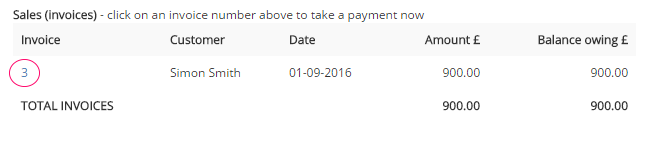
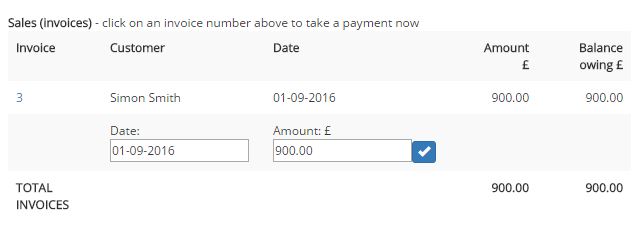
This opens up a new area where you can record the Amount of the payment and the Date of the payment. Enter the information and click on the blue tick to add the details.
Below this you will see an updated summary of the payments against this invoice and any balance outstanding.
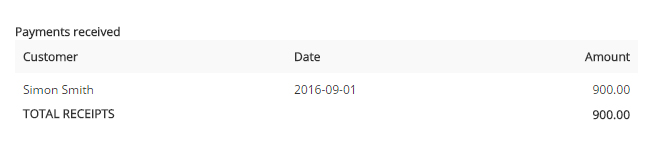
If you want to issue a receipt for a payment once an invoice is settled in full you can Reprint the original invoice and add Optional text for transaction document (eg ‘Thanks for the payment!’). On the Transactions tab click the Edit button

How do I change my currency symbol
Artlook defaults to using GBP (UK sterling). You can change this by clicking on Settings from the top level section menu. On the first General tab look for the second option labelled Currency. Click on the drop down arrow and choose your desired symbol (there’s more to come!).
Note that this changes the displayed currency throughout the application and on your website if you are using the in-built templates – it does not convert currency values from the previously selected choice.
Get the most from our Knowledgebase!
Our Knowledgebase and Frequently Asked Questions are being constantly updated to give you all you need to know about the system and any new features.
If you have a quick question it has probably been asked before so search within the FAQ or browse the Categories. For more in depth guides and tutorials head over to our Knowledgebase.