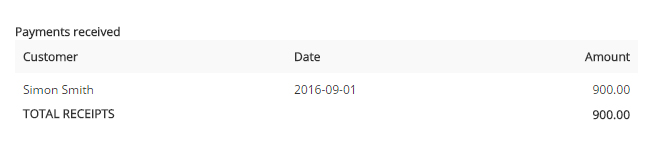
From your Inventory left click to open the record you want to mark as sold.
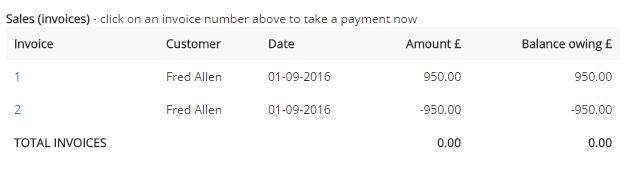
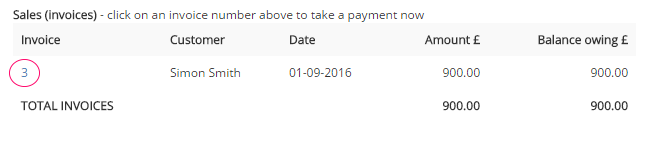
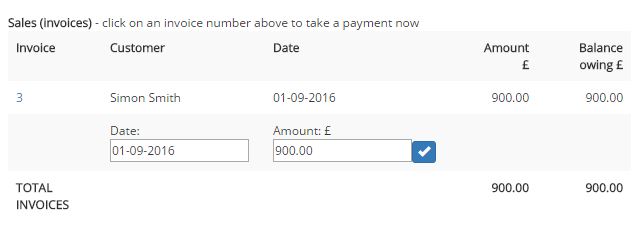
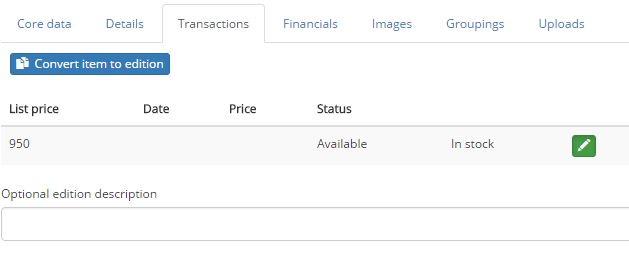
Click on the Transactions tab and the screen will look like this. Now click on the green Edit button.
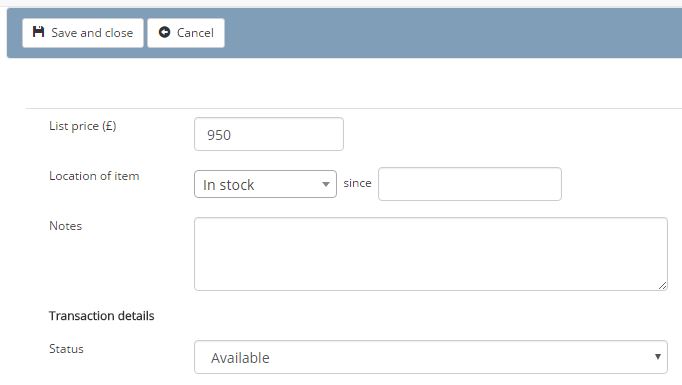
To mark this item as Sold click on the down arrow in the Status box and choose Sold. As soon as you do this you will be prompted to choose the name of the customer you are selling to. Pick their name from the list or click New Contact to add a new record.
- If you sold the item for less than the list price change the value in the Actual Price field.
- If you are processing a sale you made at an earlier date click in the Transaction Date field and pick a date from the calendar.
- If you are going to be producing an Invoice, you can add additional text to print by adding it to the Optional text for transaction document field.
- By default the location of this item will be set to the name of the purchaser but if you want to show the location as something else (maybe continue to show In Stock until you have been paid) just un-tick the Amend location on transaction completion box
Once you are finished remember to click on the Save and Close button at the top left of the screen (or Cancel if you want to start again). This will take you back to the main record for the item. Click Save and Close again to return to the Inventory list.