Artlook has an extensive range of settings that you may change to suit your needs. From the main menu choose Settings and you will find a screen with six (or seven if you are using Artlook’s built-in website features) tabs, each offering a number of customisable options. This topic discusses the settings available under the first tab, General.

Open Artlook on which page: Artlook defaults to opening onto your inventory. If you prefer, you can have it always open first on Groupings or on Contacts.
Currency: Artlook can operate in Sterling (GBP), Dollars (USD) or Euros (EUR). However you cannot mix currencies in this version.
Image sizing rule: This refers to any resizing that Artlook will do when you upload your images. For reports and for the website you may have a preference whether images should be always the same width, always the same height, have the largest side always the same size or indeed the smallest side.
Resize uploaded images to a maximum height of: Artlook will never enlarge an image, but it will reduce it to the size you state here. Our recommended size is 1500 pixels (the size of one side of the image according to your choice of image sizing rule above). The maximum permitted file size is 10 megabytes.
Quality level to save uploaded images: This is particularly important when images are to be used on a website. If images are of too high a quality they will make the web page very slow. Our recommendation here is 60%.
Measurement system: You can choose between Imperial (feet and inches) or Metric (metres and centimetres).
Contacts options (contacts are customers, artists, and all other contacts):
Contacts – show phone numbers in index display: You can choose whether or not to show phone numbers of contacts in the general display. This is more for privacy reasons if you are using computers in public spaces.
Contacts – show email address in index display: You can choose whether or not to show email addresses of contacts in the general display. This is more for privacy reasons if you are using computers in public spaces.
Contacts – show profile picture in index display: You can attach a profile picture to a contact record if you wish. This option allows you to determine whether that picture should be displayed in the general list of contacts.
Contacts – show postal address in index display: You can choose whether or not to show addresses of contacts in the general display. This is partly for privacy reasons if you are using computers in public spaces but also you may prefer a less cluttered display.
Contacts – preferred display field: You can choose whether the system refers to a customer (contact) by Full Name or by File As. If you choose File As, whatever contents you put in that field will be used to refer to customers. The system automatically puts Surname, Firstname but you can override this with whatever you want, including an organisation name if you wish. By default, the display field is Full Name (Firstname Surname).
Inventory options:
Inventory sequencing – sort by Category first: By default, Artlook sorts items by title. If you prefer, it can do so by category, then title. Within the inventory display you can change the sequence and sort by a variety of options at any time – this setting only refers to the initial sort sequence when you open your inventory.
Inventory Groupings – allow items to have an override price within a grouping: You can optionally have a different price for an item when it is in a grouping. For example, the price for a piece of work might be £500 normally. However when it is grouped to go to a one-off exhibition, for example, it might have a higher price, say £900. Catalogues and price lists produced for the grouping will show that price instead of the original. Catalogues and price lists produced outside of the grouping will show the original price.
Inventory Categories – show in index display grid: If your inventory is very category-oriented (using a lot of categories for example) you may wish to display the categories in the listing of works.
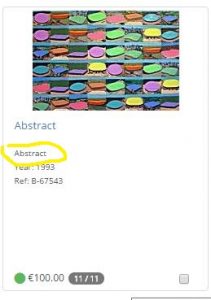
Inventory Prices – show in index display grid: If pricing is sensitive to your organisation or if your computers are in public spaces you may not wish to display the prices in the listing of works.
Inventory – show PRICES with decimals: If you price in pence or cents then you will want to turn this on. It is more usual for art to be priced in whole pounds, dollars or euros.
Use Artlook to power the website: If you are using an Artlook website, then you should set this to “Yes”. Doing so will make an additional tab appear at the top right called “Web site”.
Don’t forget to save your settings!
Also please be aware that some settings will not take effect until you log out and log in again.