There are two principal ways of creating a grouping:
- selecting New from within the Groupings module and adding the items from the drop-down list in the Items tab
- building your Grouping using the Query Pane to filter your selected inventory – in the Inventory module
The first method is relatively straightforward and needs little explanation.

On the first tab, Core Details, fill in your relevant data. You must provide a title and a grouping type before you can save the record. On the second tab, Items, select all the artworks you want to include from the drop-down list. Only use the other tabs if you want to upload video or documentation about the grouping. Finally, make sure you press one of the Save buttons.
The second method allows you to build your Grouping by filtering your inventory. A simple example would be to make a grouping of all works in a particular category or with certain tags. Follow the instructions given in the Filtering Records Knowledgebase article. To save the resulting records as a Grouping. type in a name for your group in the input box above the large “Save filtered items” button at the bottom of the Query Pane, and then press the button.
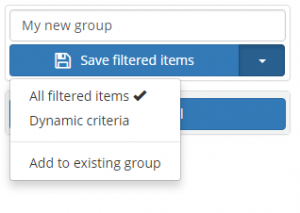
The drop-down arrow to the right of the button gives more options. If you want to add the results instead to an already existing group, press the drop-down arrow and select “Add to existing group”. Choose the Grouping to add to (the Groupings you have previously created will appear in the input box above the button) and the press the large button (“Add filtered items”). If you only want to add some of the resulting records, check (tick) the ones you want to add, press the drop-down arrow again and select “Only selected items” and then press the large button (“Add selected items”).
The Groupings described above are referred to as static groupings – you choose the records to put in the Grouping and that is the way it stays unless you add more or remove some. However you can also create a Dynamic Grouping. This will store the criteria you used to build the Grouping. For example if your Grouping simply comprised all works in the category “Abstract”, when you add more works to that category (or for more complex crtiteria, works that comply with the criteria of the Grouping) those works will also appear in the Grouping. Dynamic Groupings however have some limitations.