The Inventory Query Pane allows you to filter the records in view.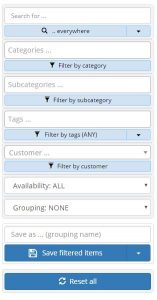
The Search function is exclusive – if you search for a record it will ignore all the other options in the pane. The dropdown menu below the search box allows you to specify the scope of your search (search everywhere, artists, titles, reference numbers or transaction ids – see separate Knowledgebase article on IDs and Reference Numbers).
All the other options in the pane build up together. I you choose a category and a tag for example, only records with both those attributes will be matched and shown to you.
In filtering by category, subcategory or customer, each item can only have one criterion.
In filtering by tags you can enter as many as you like – the filtering will be on the basis of matching any of the tags (if you have Abstract and Modern for example, the filter will find records that match either Abstract or Modern or both).
You can also filter to records available for sale, sold, reserved or consigned, and to just those you have specified to appear on your website.
The most powerful element here is the Query Pane’s relationship with Groupings. You can call up any Grouping as a filter and you can amend it or add to it and save it as a new grouping. You can save any resulting filter as a new grouping or add it to an existing grouping. Please see the separate Knowledgebase article on this subject.
The large “Reset all” button at the bottom of the pane allows you to clear all your filtering criteria and reset the view back to show All Records.