The Inventory module is where you manage all your artworks.

The display is either of thumbnails with 12 artworks per page, or as a table with 50 artworks per page. You can switch between these two using these buttons on the main menu:

The Query Pane to the right allows you to filter the records you are viewing – see article on filtering records.
Clicking on the title or the image will load the record into a new screen where you can browse its data or edit it (see Adding and editing inventory).
The “New” button will allow you to create a new record. (see Adding and editing inventory).
If you want to load several items at once from existing images in a single folder, choose “Load” and select the images you want. You can then edit the titles and other details of the artworks you have loaded.
The “Delete” button will delete any records that have their checkbox checked (after a confirmation prompt).
The “Slides” button will open a new tab in your browser and display a slideshow of your current filtered view.
“Select all” will toggle the checkbox state for all visible records.
The “Print” button drops down a menu of various reports that are available from here including catalogues, price lists, information sheets and wall labels.
The paginator allows you to move between screens or pages of artworks: 
To the right of the toolbar, you can change the sequencing of the records:
In the thumbnail display, various information is displayed:
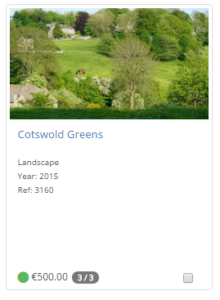
The thumbnail image is displayed (you can click this to open the record).
The title is shown (you can click this to open the record).
If there is a category this is shown.
If there is a year, this is shown.
The reference number of id is shown (if you do not use your own reference numbers, the system number will be used).
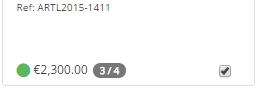
If the item is for sale a green spot will display bottom left. If sold, this would be red, and if reserved or consigned it would be orange.
This is followed by the price and, if the item is an edition (not supported in all versions) the edition number and the size of the edition (eg 6/10).
In table display, similar information is available:

Please note the checkbox is by the title rather than at the end of the record here.